



|
|
|
Home | Products | Buy | Downloads | Contact |
|
|||||||
 e-Campaign ::
FAQs Index
e-Campaign ::
FAQs Index
 FAQs:: Mail Merge: Sending Personalized Emails
Suppose you are sending email to the following mailing list file:
| FirstName, | LastName, | |
| Joe | Smith, | joe@xxx.com |
| Matt | White, | matt@yyy.com |
There are three columns (ie. FirstName, LastName, and Email) in the above mailing list, and thus you have three merge fields available to personalize the message Subject
and body:
[[FirstName]], [[LastName]], and [[Email]]
If you compose a message like this:
Hi [[FirstName]],
   We're going to give a party this weekend ...
The email to Joe will read:
Hi Joe,
   We're going to give a party this weekend ...
And the email to Matt will read:
Hi Matt,
   We're going to give a party this weekend ...
Yes. To insert a merge field into email Subject or Body, click menu "Insert" -> "Merge Fields" on the Message Composer.
Yes. e-Campaign allows you to send personalized attachments (different attachments to different recipients).
Suppose you have a mailing list file as follows.
| Email, | Name, | File | File2 |
| aa@aa.com, | Simon, | D:\DOC\simon.doc, | D:\PDF\simon.pdf |
| bb@bb.com, | Mike, | D:\DOC\mike.doc, | D:\PDF\info.pdf |
On the Message Composer, click menu "Insert->Personalized Attachments"
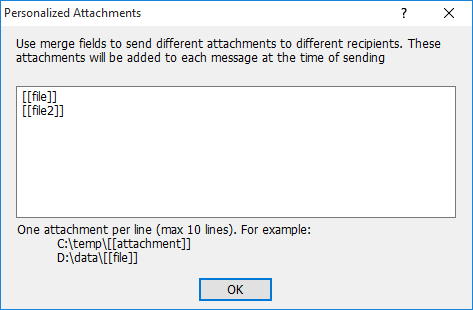
On the editbox, enter the merge fields to define the attachment filenames, one attachment per line.
In the above example, the merge fields [[file]] and [[file2]] will be replaced with real values in the File and File2 columns, respectively.
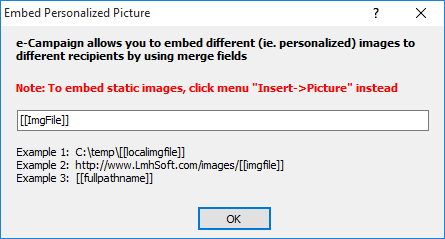
Yes, e-Campaign allows you to embed different (personalized) images to different recipients by using merge fields. Suppose you have a mailing list file as follows:
| Email, | Name, | ImgFile |
| aa@aa.com, | Simon, | D:\IMG\img_for_simon.gif |
| bb@bb.com, | Mike, | D:\IMG\img_for_mike.gif |
On the Message Composer, click menu "Insert->Personalized Picture"
| e-Campaign FAQs Index
General Questions |
Creating Mailing Lists |
Mail Merge: Sending Personalized Emails
|
 Home
| Products
| Downloads
| Buy
| Contact Home
| Products
| Downloads
| Buy
| Contact
|
© 2026 LmhSoft  |